Customizing the ArcMap Interface
Problem: You would like to customize the ArcMap interface by creating custom toolbars to make your workflow easier.
Analysis Procedures:
Strategies and Methods: I will use Arc Map (version 10.5.1) and its Customize Mode to create new toolbars, using the Customize, New Menu, and Context Menu features. I began by using the Customize mode to create a new toolbar, and the Commands tab to search for the desired tools to drag and drop into the new toolbar. I added a new menu to the toolbar and named it appropriately, and then dragged and dropped the desired tools to the menu. I repeated this process to create the second desired toolbar. I downloaded the EasyCalc add-in and installed that to ArcMap, and then added its tool to the desired toolbar. To add the desired tool to the Feature Layer Context Menu I found the desired tool in the Layer category in the commands tab, and dragged and dropped that to the appropriate location. I saved my customizations to the map document and tested the tools; this included using the EasyCalc tool to find the center of the police district polygons (Fig. 1).
Workflow Diagram:
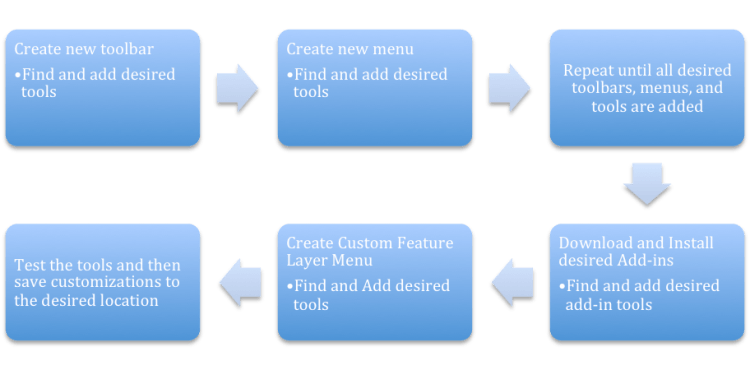
Fig. 1. Workflow diagram for customizing the ArcMap interface.
Results: These methods place the most commonly used tools in an easy to find location. Tools and menus can be added to toolbars (Fig. 2), or you can customize the Layer Menu (Fig. 3).
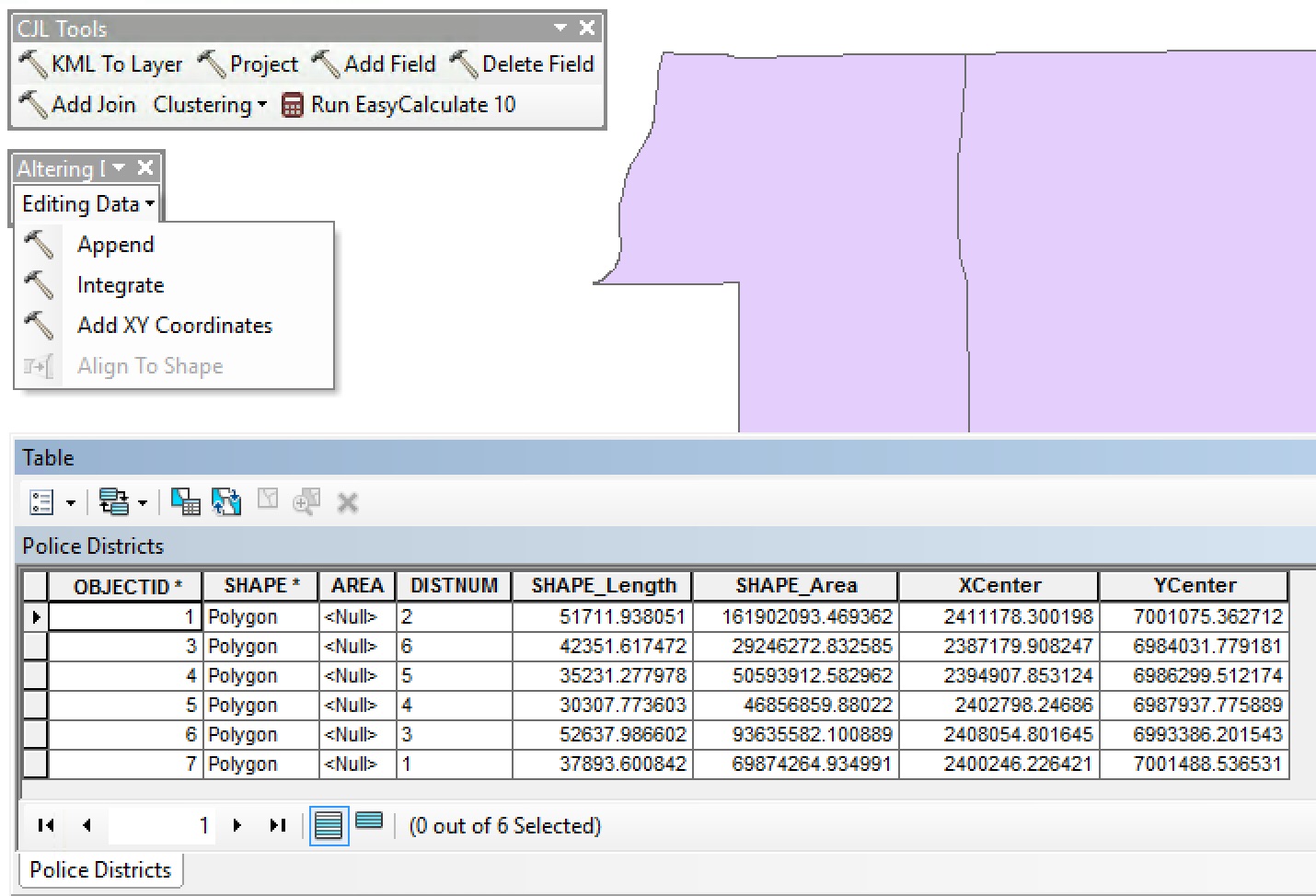 Fig. 2. Toolbars showing tools (upper left) and menus (middle left) that have been placed in the ArcMap interface. Attribute table shows results of running the EasyCalc tool to locate the center (XCenter and YCenter) of a polygon. Click on image for larger version.
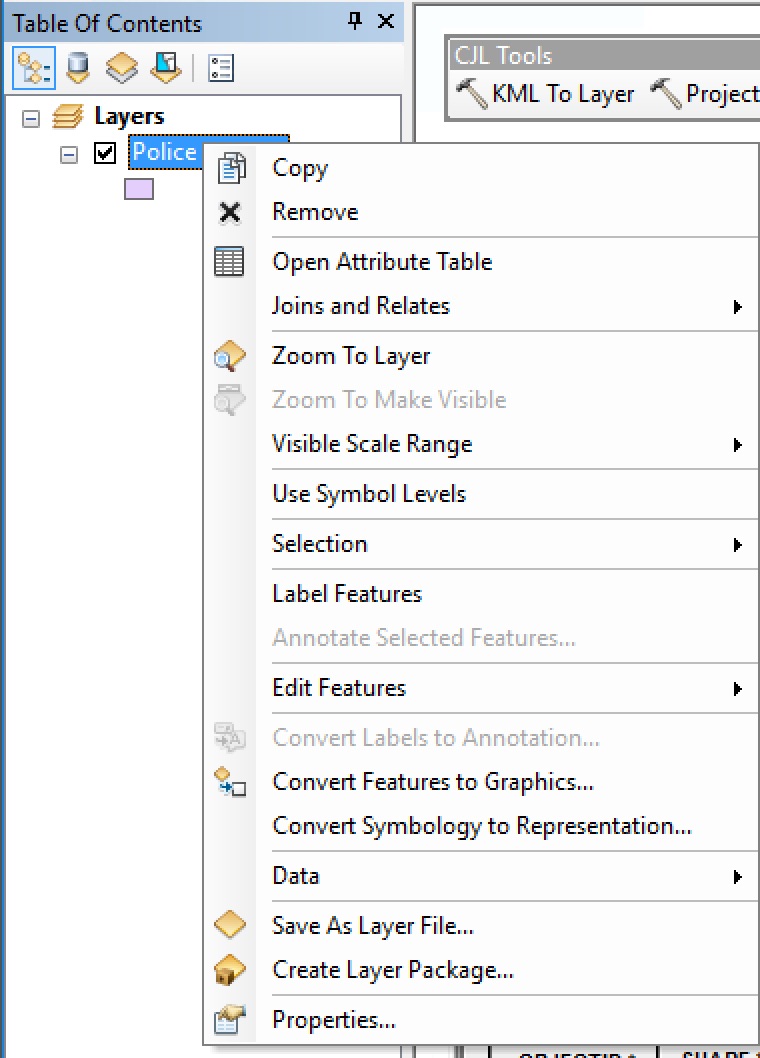 Fig. 3. Image showing customization of the Layer Menu; the Annotate Selected Features tool has been added to this menu. Click on image for larger version.
Application and Reflection: ArcMap has many tools available, and has organized them into folders and created a way to search for the tool you want, but remembering where each tool resides, or taking the steps to search for them can be cumbersome. Customizing the ArcMap interface is an easy method to increase user-friendliness, particularly for those less experienced finding the appropriate tools to use, because it allows the user to place the desired tools in new, easy to find toolbars.
Problem Description: Your company distributes supplies to local businesses you commonly runs network analyses. There is a Network Analyst toolbar available, but you want to create a custom toolbar that contains the most commonly used tools so that employees have access to your customized toolbar every time they use ArcMap.
Data needed: No particular data is needed to perform customization. There are additional tools that are available for downloading if the tools you desire are not provided in the ArcMAp interface.
Analysis Procedures: You could customize the Network Analyst toolbar by adding the Add Locations, Find Routes, and Generate Service Areas tools to the toolbar. You could also set the tools on the toolbar to show both the image and text; so new users could find the desired tools more easily. Or, you could create a new toolbar and add the desired tools and menus there.
 skgis520.com